- Lượt xem: 103
- Bình luận: 1
When you’re working on your computer, Windows creates temporary files for temporary use. These files are generated for backup purposes and to store information in a short period of time. They are primarily to store, transfer, and recover lost data.
If your hard drive is nearing full capacity, you might like to choose to delete your temporary files to free up hard disk space. Here’s how to do that.
And that’s it. Your PC will go ahead and delete the temporary files. Deleting these files is generally safe. The CMD tool will skip any files that are currently in use but delete the rest. Be sure to back up your data before you try this at home.
If your hard drive is nearing full capacity, you might like to choose to delete your temporary files to free up hard disk space. Here’s how to do that.
What to do:
- Hit Windows + R and type CMD into the search box.
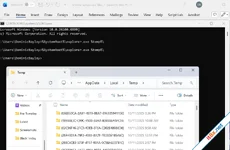
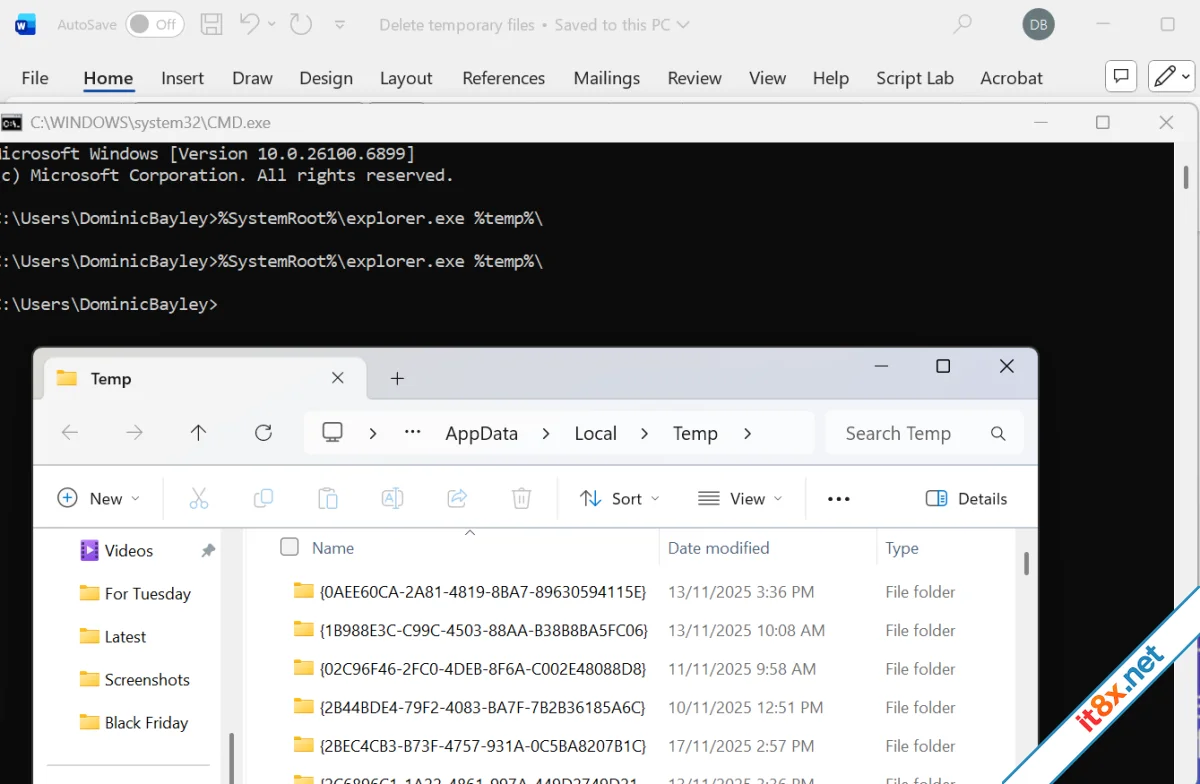
- If you want to view the temporary files before you delete them type %SystemRoot%\explorer.exe %temp%\ and hit enter. This will open the Temp folder in File Explorer. You can press Ctrl + A to select all the files and delete them.
- Alternatively type del %temp%*.* /s /q at the command line and press enter.
And that’s it. Your PC will go ahead and delete the temporary files. Deleting these files is generally safe. The CMD tool will skip any files that are currently in use but delete the rest. Be sure to back up your data before you try this at home.